

 Go to live demo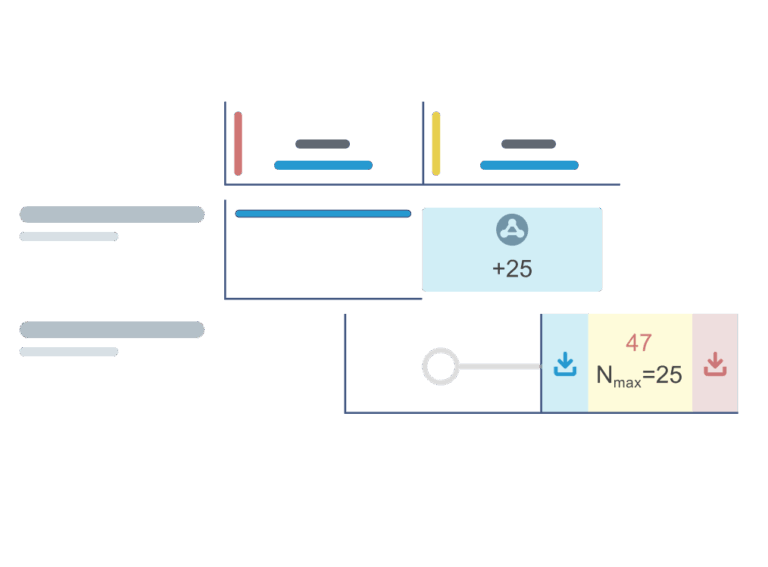
Inventory Planning Tools Update
Planning production is a timing problem as much as a supply problem.
A buyer working through an active schedule needs to know which parts are short, which purchases will arrive in time, and which builds are at risk, ideally before anyone on the floor is waiting. The Material Shortage Report exists to answer those questions. The Safety Stock Assistant exists to make sure the right minimums are set so the MSR does not surface the same shortages repeatedly. Both tools have been updated. Here is what changed and why it matters.
Material Shortage Report: Performance and Focus
The MSR pulls together a lot of data. Allocated builds, purchase orders, inventory levels, safety stock targets, and lead times all factor into a single report that gets rerun as conditions change. For organizations with large production schedules, that can add up quickly.
This update improves rendering performance to handle larger schedules more efficiently. Most reports should feel noticeably faster.
Performance aside, the most common reason an MSR takes too long to render is not a system limitation. It is scope. The MSR is designed to answer focused questions. Running it across an entire production schedule with no filters applied is the inventory planning equivalent of asking every question at once. The report will answer, but it takes time.
A few adjustments make a significant difference in both speed and readability:
- Scope your builds. Selecting a subset of builds reduces the number of columns the report needs to compute and focuses attention on what actually needs review. If the concern is a specific customer order or assembly, start there.
- Use the time period filter. Setting a start and end date limits the report to builds within a relevant window. Shortages six months out are worth knowing about, but they rarely need to be in the same view as this week’s production.
- Filter by part type or manufacturer. When the goal is to understand a specific supplier relationship or component category, applying those filters reduces the number of rows significantly and makes patterns easier to spot.
- Use saved reports. A well-configured report is worth saving. Rebuilding settings each time adds friction and introduces inconsistency. Saved reports keep common views ready to run and ensure teams are working from the same inputs.
- Hide clear-to-build columns. In Build Timeline mode, removing columns with no shortages keeps the report focused on builds that actually need action. A clean view is easier to act on than a full one.
For teams using the MSR regularly, these are not workarounds. They are how the tool is designed to be used.
Reading the Report Effectively
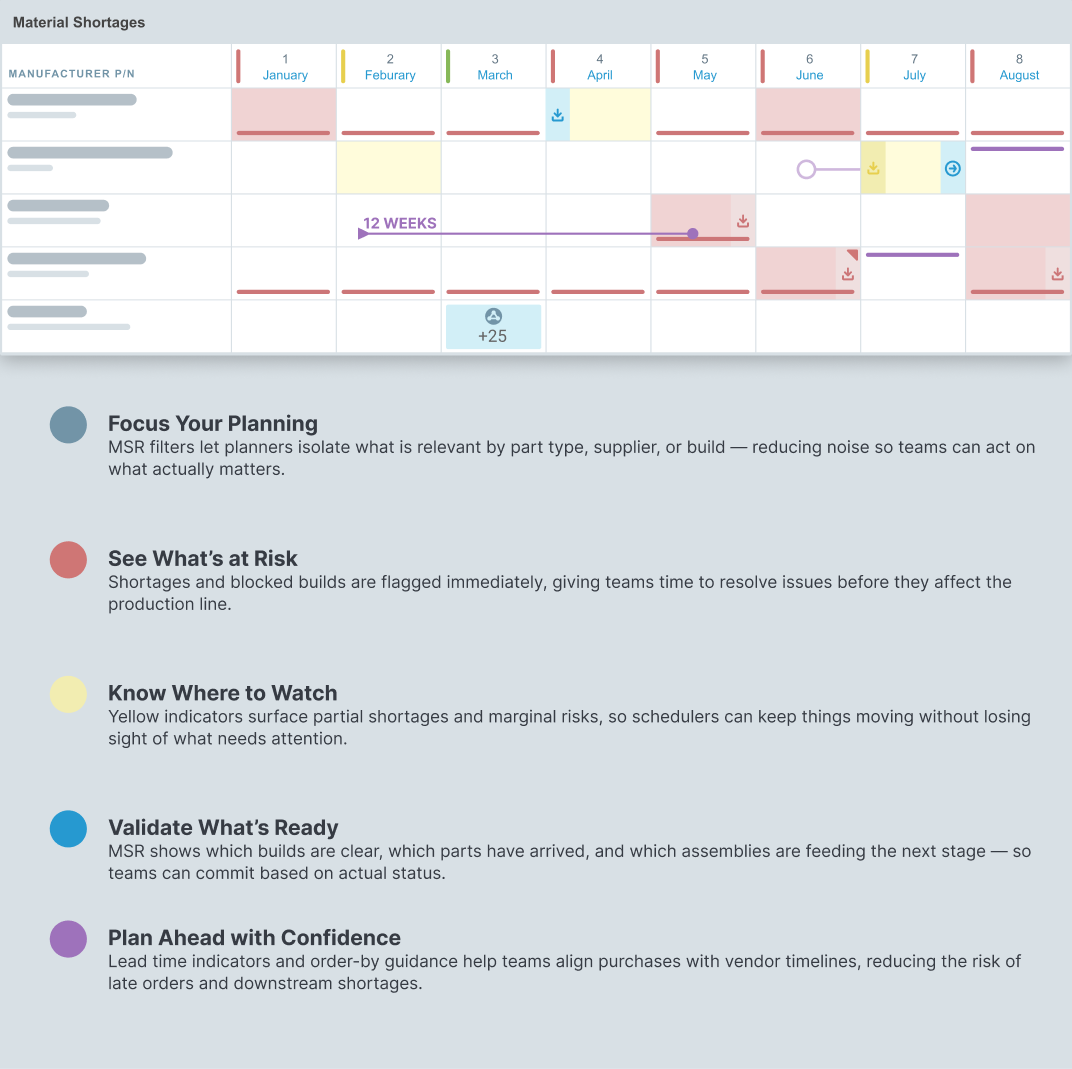
The MSR communicates through color and position. Understanding what each indicator means is the difference between scanning a report and actually using it.
Red cells flag shortages that will affect a build if left unresolved. These are the priority. Yellow indicators surface partial shortages and marginal risks, parts that are not critical yet but worth watching as the schedule moves forward. Green indicates parts that are covered, builds that are clear, and assemblies that are on track to feed the next stage.
Lead time indicators in Calendar Timeline mode show order-by dates based on standard lead times entered for each item. For buyers managing procurement against a production schedule, this is where the MSR becomes a planning tool rather than just a reporting one. Items sorted by order date make it straightforward to prioritize purchasing activity and avoid the downstream shortages that come from late orders.
For technical documentation, visit our documentation→
Safety Stock Assistant: Filters and Layout Updates
Setting safety stock is not a one-time task. Parts get added, consumption patterns shift, and suppliers change. The Safety Stock Assistant is designed to make it practical to review and update reorder points across a part type or assembly part list without turning it into a project.
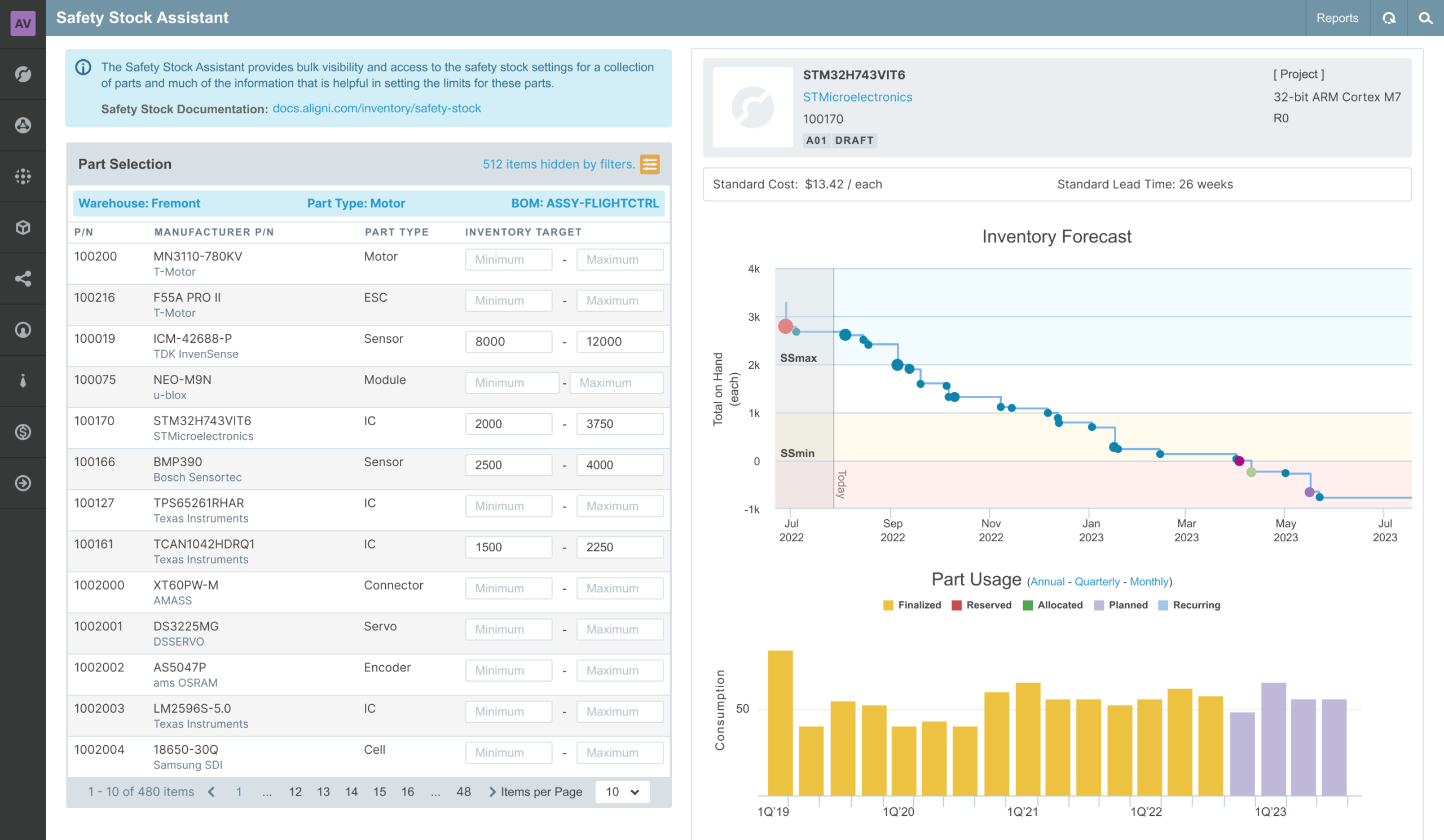
This update adds a filter system for navigating large part sets and rebalances the layout between the parts panel and the usage summary. For organizations managing hundreds or thousands of parts, finding the right subset to review has required more scrolling than it should. The new filters make it faster to scope the assistant to what is actually relevant.
The usage summary panel has also been updated to give the historical chart and inventory data more room. When setting reorder points, the context matters. Historical consumption, current inventory levels, planned builds, and where-used information all factor into a reasonable minimum. A more balanced layout makes it easier to read that context alongside the parts being updated.
For teams that have not used the Safety Stock Assistant, it is worth revisiting. The MSR will surface shortages, but it works best when safety stock targets are set and maintained. The assistant is how that maintenance happens efficiently, part type by part type, or assembly by assembly, with the relevant data visible while making changes.
For technical documentation, visit our documentation→
Why These Two Tools Work Together
The MSR and the Safety Stock Assistant address different parts of the same problem.
The MSR answers the question: given the current production schedule, what do we need and when. The Safety Stock Assistant answers the question: given historical consumption and current inventory, what minimums should be set to avoid running short in the first place.
Teams that maintain safety stock targets consistently get more out of the MSR. The safety stock indicators in the report are only meaningful when the targets behind them reflect actual consumption patterns. When they do, the MSR can flag not just immediate shortages but periods where inventory is trending toward risk, giving teams time to act before the problem reaches the floor.
For documentation on MSR settings and filtering, visit our documentation →
For documentation on the Safety Stock Assistant, visit our documentation →